
Ahead of November 20, 2026 (the official date Vimeo will be closing down it’s On Demand service), many Korean manhwa companies (Do7, ABJ) who’ve sold content through this website still haven’t come up with a new platform to host, and have absolutely no plans of honoring previous purchases. This foolproof guide will take you through all the steps of making legal offline copies.
Windows#
Step 0: Please use a good terminal (and check if Winget is installed on your device)#
Mostly all Windows 11 machines come bundled with Windows Terminal at this point (Check by searching for “Terminal” on your device), but if yours still hasn’t got it, please install it here.
Open Powershell by searching for it (or Win + X > powershell) and check whether you have winget (this should also be bundled with your machine)
winget --versionIf you see v1.29.280 or any other version, cool! If you see The term 'winget' is not recognized... please make sure you’ve installed App Installer, reboot and try again.
#
Step 1: Installing yt-dlp#
Run the following command in Powershell, this will install yt-dlp’s nightly version (A tool to save videos from multiple sites), ffmpeg (required to merge audio + video) and Deno (Youtube compatibility)
winget install -e --id yt-dlp.yt-dlp.nightlyClose and reopen your terminal, and check that they’ve installed successfully by doing yt-dlp -v and ffmpeg -version. You should see something similar to [debug] yt-dlp version stable@2026.06.09 from yt-dlp/yt-dlp [821bef0f0] (pip) and ffmpeg version N-124716-g054dffd133-20260531 Copyright (c) 2000-2026 the FFmpeg developers respectively.
This is also a good time to log into your Vimeo account in the browser you usually use.
Optional: Install aria2#
Aria2 is a multi-threaded downloader that will max out your internet speeds, which is helpful to shorten the process time especially when downloading multiple files. If you’d like to, you can install aria2 by running
winget install -e --id aria2.aria2Step 2: Building the command and downloading#
The base command of this tutorial is:
yt-dlp -f bv+ba --cookies-from-browser=tee --write-subs --sub-lang all "URL"
Or, if you’re using aria2
yt-dlp -f bv+ba --cookies-from-browser=tee --downloader aria2c --downloader-args "-x16 -s16" --write-subs --sub-lang all "URL"
- yt-dlp (executable)
- -f bv+va: Selecting the best video + best audio as format to be merged.
--cookies-from-browser=tee: Tells yt-dlp to get the Vimeo account data from the browser directly. tee should be replaced withchrome(orchromium,brave,opera,vivaldi,edge,brave),firefoxorsafari. IMPORTANT: If you’re using Chrome or any derivative, you need to close the browser completely before using the commands, as the cookie extractor does not work with opened Chrome tabs.--downloader aria2c --downloader-args "-x16 -s16": Tells yt-dlp to use aria2c as the download platform, using 16 connections to the server and splitting the download in 16 parts.--write-subs --sub-lang all: Tells yt-dlp to download all subtitles available in their own file.
So, as an example using Mignon episode 5, I’d use the command:
yt-dlp -f bv+ba --cookies-from-browser=firefox --write-subs --sub-lang all "https://vimeo.com/ondemand/mignon/852865464"
And as a result, I’d get:
- 【Mignon】 민용 05 [852865464].mp4
- 【Mignon】 민용 05 [852865464].en.vtt
- 【Mignon】 민용 05 [852865464].ja.vtt
- 【Mignon】 민용 05 [852865464].ko.vtt
By playing the MP4 file in my favorite video player, the subtitles should load automatically.
Optional: Auto-command builder#
You can use the following command on your browser console (Usually found by right clicking anywhere > “Inspect element” > Console) to get the built commands for every video you have access to (By selecting the ones on the list that have the “Watch” button instead of “Buy”)
javascript:(()=>{let b=navigator.userAgent.match(/Firefox|Chrome|Safari/)?.[0].toLowerCase()||'chrome',k='--cookies-from-browser='+b,a=[...document.querySelectorAll('table.ep-list tr:has(.ep-list__clip-access-btns a[href^="/ondemand/"])')].map(t=>t.querySelector('.ep-list__title-link.vod-title-page-router-link').href),d=document.body.appendChild(document.createElement('div'));d.style.cssText='position:fixed;top:0;left:0;background:#fff;border:1px solid #000;padding:10px;z-index:99999;font:12px monospace';d.innerHTML='<style>.c{padding:5px;border:1px solid #ccc;cursor:pointer}</style><label><input type=checkbox id=t>aria2</label> <button id=z>Copy All</button><br><span style=color:red>Chrome: Close browser before pasting</span><br>';let p=()=>`yt-dlp -f bv+ba ${k} ${t.checked?'--downloader aria2c --downloader-args "-x16 -s16" ':''}--write-subs --sub-lang all "`,r=()=>d.querySelectorAll('.c').forEach((e,i)=>e.innerText=p()+a[i]+'"');a.forEach(x=>d.innerHTML+=`<div class=c onclick="navigator.clipboard.writeText(this.innerText).then(()=>this.style.background='#afa')">${p()+x}"</div>`);z.onclick=()=>navigator.clipboard.writeText(a.map(x=>p()+x+'"').join('\n')).then(()=>z.innerText='Copied!');t.onchange=r})()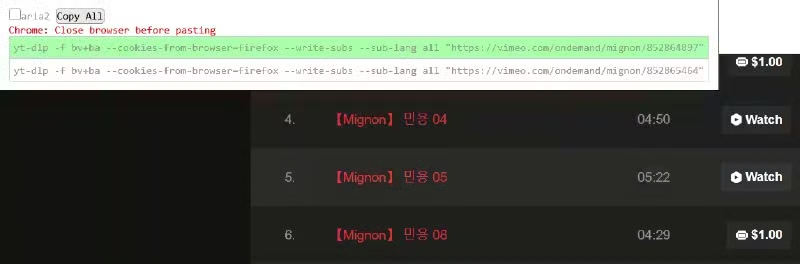
Simply check the aria2 togglebox whether you’ll be using it, then click each command to copy and paste it in your terminal.
macOS and Linux#
Virtually all the steps are the exact same, except for the tool installation part
macOS#
The easiest way is to follow the Hombrew installation guide by pasting the following in your terminal:
/bin/bash -c "$(curl -fsSL https://raw.githubusercontent.com/Homebrew/install/HEAD/install.sh)"make sure brew is updated
brew updateand download the required tools:
yt-dlp:
By specifying –HEAD we’re making sure we’re downloading the nightly version of yt-dlp, which can be unstable but also receives compatibility updates the fastest.
brew install --HEAD yt-dlpffmpeg:
brew install ffmpegaria2:
brew install aria2Linux#
If you’re intelligent enough to use Linux I’m sure you have your favorite way of installing ffmpeg, aria2 and yt-dlp. Use those. If you can’t figure it out, you can use the macOS steps, they should work too.